Your Home Screen Your Way: Panels, Weather, Dream Streak
You can arrange the DreamAI home screen your way: panels, ready-made layouts, moon phase and weather, dream streak, symbol of the day and quick dream entry.
 Author: The DreamAI Team
·Published
·5 min read·👁 0 views
Author: The DreamAI Team
·Published
·5 min read·👁 0 views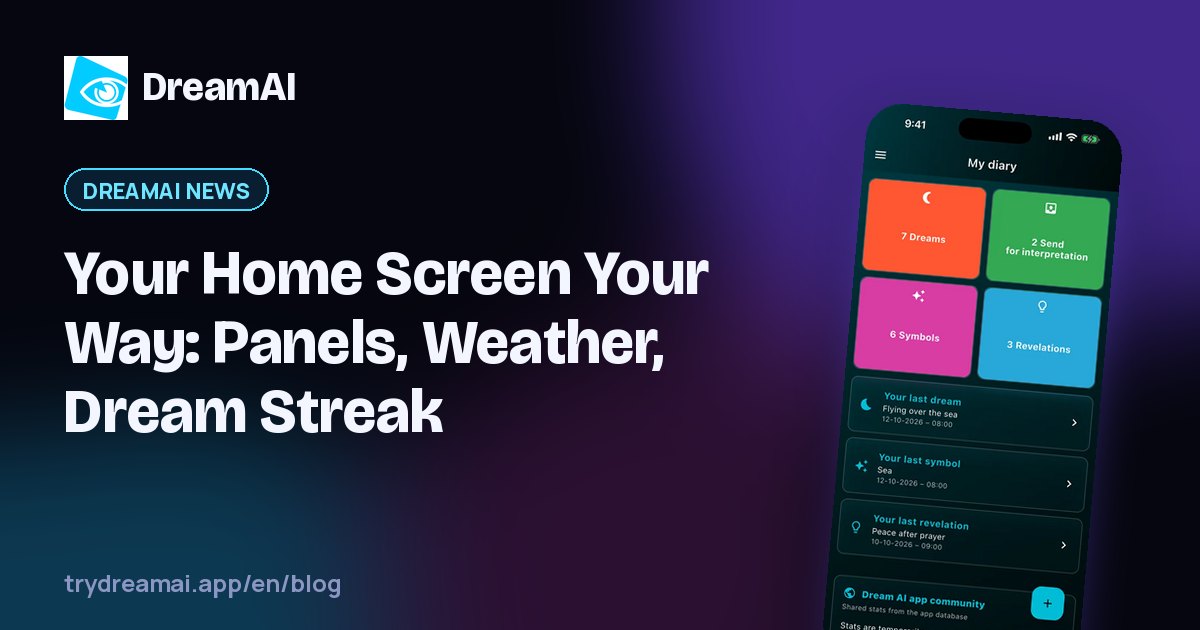
Table of contents
The home screen is the first thing you see when you open the app, and in a dream journal that matters, because in the morning you have only a few minutes before a dream fades. In the new version of DreamAI you can arrange the home screen exactly the way you like: put the panels in the order you want and adjust the look of the tiles.
In this article we describe which panels are available, how to use the ready-made layouts, what the weather panel shows and how to arrange the home screen around a morning habit of recording dreams.
In short: put quick dream entry on top, with the dream streak and “on this day” below it. Arrange the rest of the panels to your needs. The layout is saved to your account, so it looks the same on every device.
What you can set on the home screen
The home screen is made of panels, and you can change their order. They include:
- quick dream entry, the shortest way to a new entry right after waking,
- dream streak, which shows how many days in a row you have recorded dreams,
- “on this day”, a return to dreams from the same day in earlier years,
- symbol of the day, a short nudge to open the symbol dictionary,
- moon phase and weather, an optional panel with information about the day.
The look of the tiles is yours too: you can change their colors and transparency so that the screen matches your chosen theme and background.
Ready-made layouts for the undecided
You do not have to build everything from scratch. The app has ready-made layouts you can start from and then adjust the order of the panels to suit you. It is faster than setting everything up from scratch, especially at the beginning.
The weather panel and moon phase
The weather panel is optional. In it you choose a city, and the app shows the weather for that place. A few things worth knowing:
- it uses the free service Open-Meteo,
- the app does not read your device’s GPS location, because you point to the city yourself,
- no account data, user ID or advertising ID is sent to the weather service,
- the moon phase is calculated on your device,
- you can remove the panel or the city at any time.
More about how we treat this data is in the privacy policy.
How to arrange the home screen around a morning habit
A good dream journal runs on regularity, and the home screen can help. Here is a simple layout idea:
- Quick dream entry on top. In the morning you do not want to look for a button, you want to start typing or dictating right away.
- The dream streak right below. A counter of consecutive days can keep you motivated for longer, and seeing your own streak is a small reward.
- Then “on this day”. Going back to old dreams often shows what has changed and what keeps returning.
- At the end the symbol of the day, moon and weather. These are extras for a calmer moment.
This is only an idea. You can change the order of the panels at any time, so experiment until the screen suits your morning.
Three layout ideas
There is no single right setup, so treat the following as inspiration:
- The minimalist. Quick dream entry and the dream streak, nothing more. You open the app, record the dream and close it.
- The reflective one. Quick dream entry, “on this day” and the symbol of the day. After recording a dream you look at old entries and at the symbol dictionary.
- The curious one. On top of that come the moon phase and weather, if you like to start the day with a short overview.
It is worth looking at the layout again after a week. You will often find that you use one panel daily and another never. Then move the first one higher.
The look of the tiles
It is worth matching the color and transparency of the tiles to the background you chose. On a light background stronger colors tend to read better, and on a dark one softer, semi-transparent tiles. The best test is to open the app in the morning, in dim light, and check whether the text reads without effort.
Syncing the layout
The home screen layout and appearance settings sync with your account, so on your phone, tablet and computer you see the same thing. If you use the weather panel, the city you selected is saved to your account too, so it is the same everywhere.
Frequently asked questions
Do I have to use the weather panel?
No. The weather panel is optional, and you can remove the city at any time.
Does the app check my location?
No. The app does not read your device’s GPS location. It shows the weather for the city you choose.
Will the layout be the same on my phone and computer?
Yes. The layout syncs with your account on all your devices.
Summary
The customizable home screen lets you arrange DreamAI around your rhythm: panels in the order you choose, ready-made layouts, tile colors and transparency, and an optional weather panel with the moon phase. Start with quick dream entry on top and the dream streak, and adjust the rest to yourself.
Want to set it up? Get DreamAI for iPhone, Android or Windows. How to adjust the look of the app is covered in Personalize DreamAI: accent colors, seasonal backgrounds and optional effects.
The DreamAI Team
Makers of the DreamAI app
The Dream Apps team behind the DreamAI app. We write about remembering dreams, keeping a dream journal and how technology can support reflection on your own dreams.
The view and like counters work without cookies and without storing IP addresses. We only use a short-lived, anonymized hash so the same visit is not counted repeatedly.
Keep reading
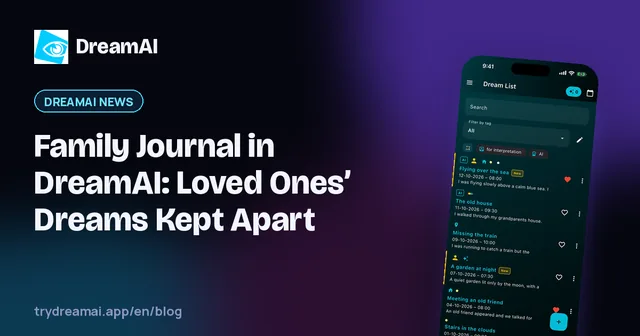
Family Journal in DreamAI: Loved Ones’ Dreams Kept Apart
In DreamAI you can keep the dreams and revelations of people close to you apart from your own. Each person gets separate AI context and memory. Here is how it works.
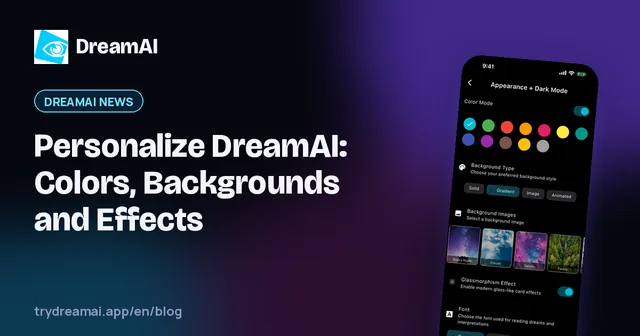
Personalize DreamAI: Colors, Backgrounds and Effects
In DreamAI you can adjust accent colors, seasonal and holiday backgrounds, fonts and optional snow and rain effects. The effects are off by default.

Can AI Interpret Dreams? What AI Dream Analysis Offers
AI cannot predict the future from a dream, but it can help you look closely at its text, symbols and emotions. Here is what to expect.