Personalize DreamAI: Colors, Backgrounds and Effects
In DreamAI you can adjust accent colors, seasonal and holiday backgrounds, fonts and optional snow and rain effects. The effects are off by default.
 Author: The DreamAI Team
·Published
·4 min read·👁 0 views
Author: The DreamAI Team
·Published
·4 min read·👁 0 views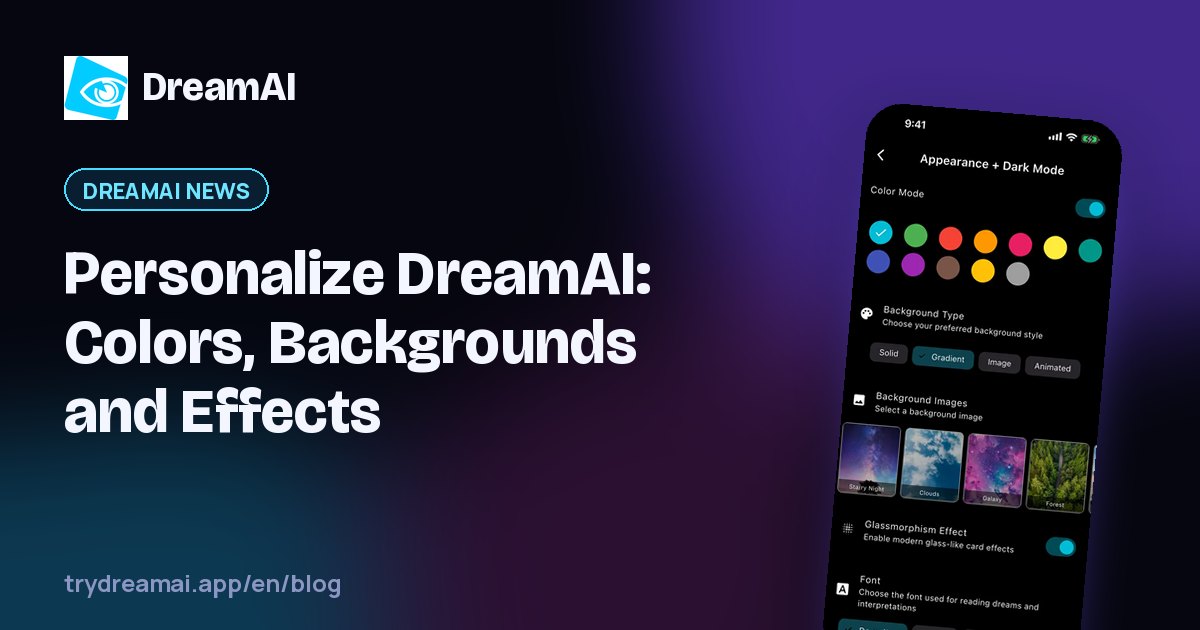
Table of contents
A dream journal is a place you come back to every day, so it is worth making it look the way you like. In the new version you can personalize DreamAI further: there are more accent colors, seasonal and holiday backgrounds, more fonts and optional snow and rain effects.
In this article we show what exactly you can adjust, how the effects work, whether they use battery and how to set the app up so it is comfortable to read at any time of day.
In short: choose a light or dark theme, an accent color, a background and a font. Snow and rain effects are optional and off by default, and a battery saver mode turns them off. Appearance syncs with your account on all devices.
What it means to personalize DreamAI
DreamAI has always had a dark and a light mode, an accent color, a background (gradient, image or animated), a glass effect and a choice of font. Now there is more:
- more accent colors, so buttons and highlights match your taste,
- seasonal and holiday backgrounds, including the “Holy Spirit” background,
- optional snow and rain effects on the screen,
- more fonts, so you can pick the one that reads best for you.
Seasonal and holiday backgrounds
A background sets the mood of the app. Seasonal and holiday backgrounds let you change it with the time of year or a period in the calendar, and one of them is the “Holy Spirit” background. If you prefer fewer distractions, choose a calmer background, such as a gradient.
Snow and rain effects
Effects are an extra for those who like a screen that feels a little alive. What matters:
- they are optional, so you turn them on only if you want to,
- they are off by default,
- settings include a battery saver mode that turns them off.
If battery life matters to you, or you want full focus while writing a dream, just leave the effects off.
Dark or light, and which font
A well-chosen look is not only decoration but also reading comfort. A few practical tips:
- Right after waking a dark theme is often gentler on the eyes, while during the day a light one can be more comfortable.
- Choose a font for reading, not for looks. If you write long dreams, pick the one that does not tire your eyes.
- Match the accent color to the background, so buttons stay clear on the one you picked.
- Treat effects like seasoning. They can look nice, but the text of your dream matters most.
How to personalize DreamAI step by step
You do not have to change everything at once. A calm order looks like this:
- Start with the theme. Pick light or dark, depending on when you most often record dreams.
- Choose an accent color and a background. Changing these two things transforms the app the most.
- Check the font. Write a longer passage in the journal and see whether it reads well.
- Decide about effects last. If you turn them on and want to save battery, use the battery saver mode.
Look and reading comfort
When you personalize the app, you are also looking after your eyes. If you record dreams at night or right after waking, avoid very bright colors and too much contrast, which can feel harsh in the morning. If you read old entries during the day, choose colors on which the text is clear. It is also worth remembering that you can set the text size in DreamAI, so you can adjust it to yourself whatever the theme.
The look is your choice. There is no “right” theme or “better” color. What matters is that you are happy to open your journal every morning.
Syncing with your account
Appearance settings sync with your account. When you choose a theme, color and background on your phone, you see the same on your tablet or computer. You do not have to set everything up again on each device.
Frequently asked questions
Do the effects (snow, rain) use battery?
They are optional and off by default. Settings also include a battery saver mode that turns them off.
Can I change the look on just one device?
Appearance settings sync with your account, so a change is visible on all your devices.
Does changing the look affect my dreams and entries?
No. Appearance only changes how things are displayed, and the content of your journal stays the same.
Summary
To personalize DreamAI means more accent colors, seasonal and holiday backgrounds, more fonts and optional snow and rain effects with a battery saver. Pick what reads well for you, and turn on effects only when you feel like it.
Want to try it? Get DreamAI for iPhone, Android or Windows. Arranging the panels on the first screen is covered in Your Home Screen Your Way.
The DreamAI Team
Makers of the DreamAI app
The Dream Apps team behind the DreamAI app. We write about remembering dreams, keeping a dream journal and how technology can support reflection on your own dreams.
The view and like counters work without cookies and without storing IP addresses. We only use a short-lived, anonymized hash so the same visit is not counted repeatedly.
Keep reading
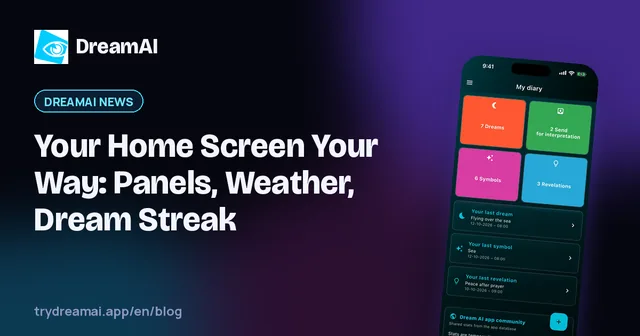
Your Home Screen Your Way: Panels, Weather, Dream Streak
You can arrange the DreamAI home screen your way: panels, ready-made layouts, moon phase and weather, dream streak, symbol of the day and quick dream entry.
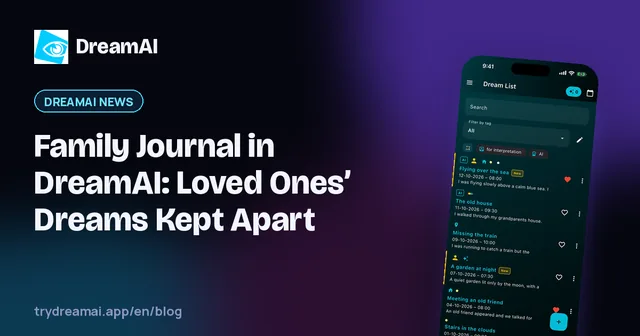
Family Journal in DreamAI: Loved Ones’ Dreams Kept Apart
In DreamAI you can keep the dreams and revelations of people close to you apart from your own. Each person gets separate AI context and memory. Here is how it works.

Can AI Interpret Dreams? What AI Dream Analysis Offers
AI cannot predict the future from a dream, but it can help you look closely at its text, symbols and emotions. Here is what to expect.